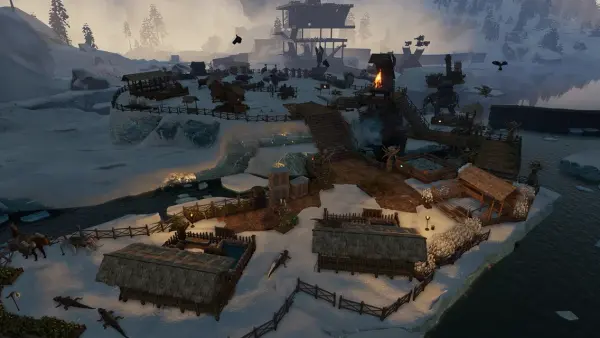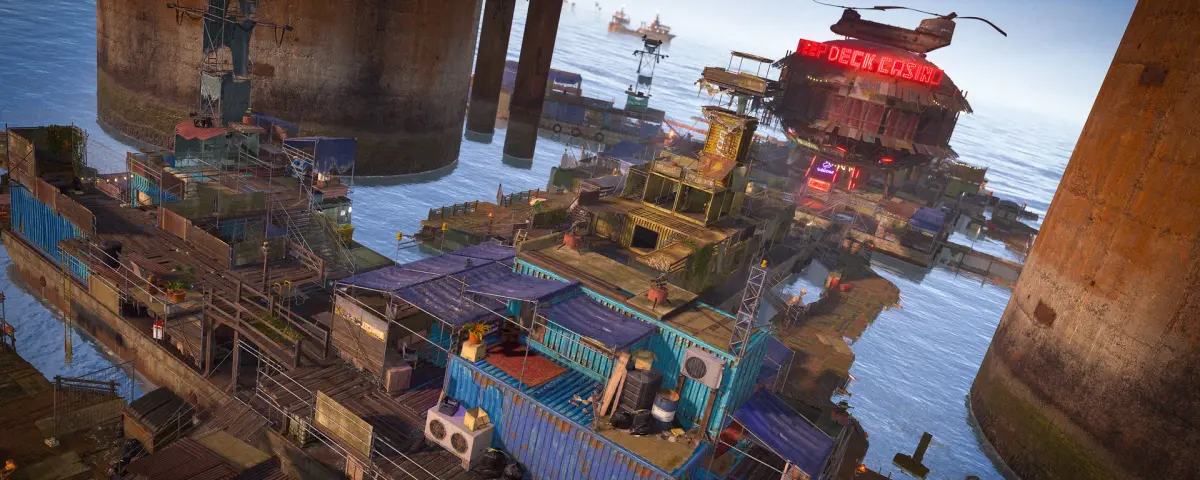
Det at sætte din egen dedikerede Rust-server op giver dig fuld kontrol over reglerne, kortet, plugins og hvem der får lov til at spille. Uanset om du vil have en afslappet PvE-byggeserver eller en hardcore raiding-arena, er det vejen frem at køre din egen server.
Denne guide tager dig gennem alt fra installation af serveren til indlæsning af Oxide-plugins og finjustering af konfigurationsfiler.
Krav
Før du starter, er det her, du har brug for:
- En dedikeret server eller VPS med mindst 8 GB RAM (16 GB anbefales til større kort)
- En moderne multi-core CPU. Rust er CPU-tung
- SSD-storage med mindst 10 GB ledig plads
- En stabil internetforbindelse med ordentlig upload-hastighed
- Windows eller Linux som operativsystem
- SteamCMD installeret
For de fleste er den letteste vej at leje en Rust-server hos en hosting-udbyder. Så springer du hardwarebesværet over og kommer i gang på få minutter.
Port forwarding ved self-hosting: Hvis du kører serveren hjemmefra eller på en VPS uden managed firewall, så åbn disse porte: TCP/UDP 28015 (spiltrafik) og UDP 28016 (RCON web). Uden dem kan spillerne ikke forbinde.
Trin 1: Installer SteamCMD og Rust-serveren
SteamCMD er Valves command-line værktøj til at downloade dedikerede serverfiler. Hent det fra Steams officielle developer-side.
Når SteamCMD er klar, kør så disse kommandoer:
App ID 258550 er Rust dedicated server. validate-flaget tjekker filintegriteten, hvilket er nyttigt efter opdateringer eller hvis noget bryder.
Trin 2: Opret dit startup-script
Opret en fil ved navn start.sh (Linux) eller start.bat (Windows):
Vigtige parametre forklaret:
- server.worldsize: kortstørrelse i meter. 4000 er standard. Mindre kort (2000-3000) passer til mindre grupper og loader hurtigere.
- server.seed: den tilfældige seed, der genererer dit kort. Skift den for at få et andet layout.
- server.saveinterval: hvor ofte serveren gemmer, i sekunder. 300 (5 minutter) er en solid default.
- server.maxplayers: de fleste community-servere kører 50-200 spillere.
- server.identity: et unikt navn til din server-instans, der styrer hvor save-filerne gemmes. Sæt det én gang og lad være med at ændre det, ellers mister du din verden.
Trin 3: Installer Oxide (uMod)
Oxide er det mest populære modding-framework til Rust. Næsten alle plugins kræver det. Sådan installerer du det:
- Download den nyeste Oxide-build fra umod.org
- Pak filerne ud i din Rust-server-mappe og overskriv eksisterende filer, når du bliver bedt om det
- Genstart serveren
Efter genstarten kan du verificere installationen ved at skrive oxide.version i serverkonsollen.
Trin 4: Installer plugins
Plugins lægges i oxide/plugins-mappen. Drop .cs-filen ind, og serveren kompilerer og indlæser den automatisk. Ingen genstart nødvendig for de fleste plugins.
Vigtige plugins til enhver server
- GatherManager: justér rater for ressource-indsamling (2x, 3x, 5x osv.)
- NTeleportation: lad spillere sætte homes og teleportere
- Clans: clan-system med tags og delte døre
- BetterChat: tilpasset chat-formatering, farver og gruppe-prefixes
- RemoverTool: lad spillere fjerne fejlplacerede bygningsdele
- AutoDoors: døre lukker automatisk efter en sat tid
- QuickSmelt: speed up furnace smelting
Placér plugins i: /server/rust/oxide/plugins/
Serveren auto-kompilerer og indlæser dem. Tjek konsollen for fejl, hvis noget ikke virker.
Trin 5: Server-konfiguration
server.cfg
Din server.cfg-fil ligger i server/rust/cfg/. Det er her, du sætter permanente server-variabler:
Oxide-konfigurationsfiler
Hvert plugin genererer sin egen config-fil i oxide/config/. Når et plugin indlæses første gang, kan du redigere dets JSON-config for at tilpasse adfærden. Eksempel på GatherManager-config:
Efter redigering: brug oxide.reload PluginName i konsollen for at anvende ændringerne.
Trin 6: RCON og server-administration
RCON (Remote Console) lader dig administrere serveren uden at være in-game. Sæt det op i dit launch-script med +rcon.port og +rcon.password.
Populære RCON-værktøjer:
- RustAdmin: desktop-app med rent GUI, spilleroversigt og chat-log
- BattleMetrics: web-baseret RCON med player tracking, ban-lister og scheduling
- WebRCON: browser-baseret konsol-adgang på
http://your-ip:28016
Almindelige RCON-kommandoer:
Trin 7: Wipe-schedule og vedligeholdelse
Rust har en forced wipe den første torsdag i hver måned, når Facepunch udgiver en stor opdatering. De fleste community-servere laver også en bi-weekly map wipe for at holde tingene friske.
Typisk opsætning:
- Map wipe: hver 2. uge (ugentligt for high-pop servere)
- Blueprint wipe: månedligt på forced wipe-dagen, eller sjældnere
Performance-tips
- Hold dit plugin-antal rimeligt. 30-40 velholdte plugins er rigeligt. Over 60 forårsager ofte lag.
- Sæt fps.limit til 256 i din server-config. Lad være med at have det uncapped.
- Brug en SSD. Rust gemmer hyppigt og store filer.
- Hold øje med dit RAM-forbrug. Et 4000-kort med 100+ spillere kan bruge 10-12 GB RAM.
- Opdater Oxide og plugins regelmæssigt. Outdated plugins forårsager crashes og exploits.
- Genstart serveren på en schedule (dagligt kl. 5 om morgenen) for at rense memory leaks. Brug et cron job eller Windows Task Scheduler.
Klar til at spille?
Det kræver lidt arbejde at sætte en Rust-server op, men når den først kører, har du fuld kontrol over din oplevelse. Fra tilpassede gather rates til unikke plugins kan din server være præcis det, du vil have.
Hvis du hellere vil springe opsætningen over og hoppe direkte til at administrere dit community, så tjek DoomHosting Rust server hosting. One-click Oxide-installation, automatiske opdateringer og fuld RCON-adgang inkluderet.